Free blurred frame and side blur tool
Blurred Frame
Add a blurred frame around any photo. Keep the whole picture, pick 16:9, 9:16, 1:1, or a custom ratio, then download.
Drop a photo to add a blurred frame
or
JPG, PNG, and WebP are supported. Your image stays in your browser.
Allowed file types: JPG, PNG, WebP
What is a blurred frame?
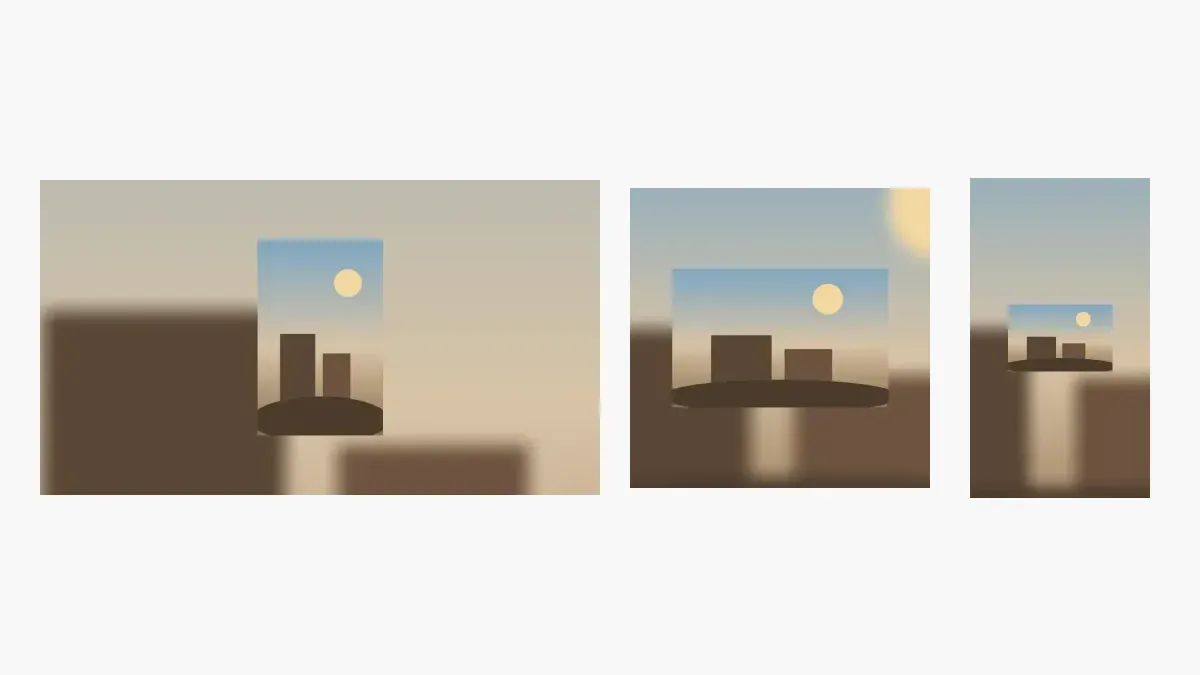
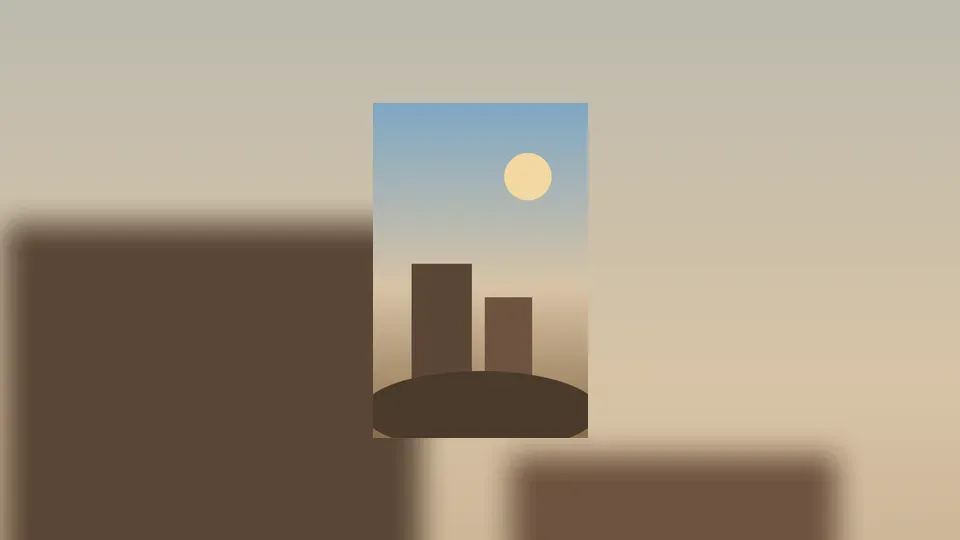
A blurred frame keeps your full photo sharp in the center and fills the leftover canvas with a blurred, zoomed copy of the same picture. This page is for any output shape, not only a square. Use a blurred frame when a vertical phone photo must sit on a 16:9 YouTube thumbnail, a landscape photo must fill a 9:16 Story, or you want a soft photo frame without black bars or cropping. The blur frame, photo size, and background zoom update in the preview before you download PNG, JPG, or WebP.
Related square image tools
Make Image Square Without Cropping
Keep the full photo visible with a blur or color background.
Instagram Square Image
Create a 1080x1080 square photo for Instagram posts and profile pictures.
Batch Square Image Converter
Convert multiple images to square format and download them as a ZIP.
Square Profile Picture Maker
Make a square profile picture with rounded corners and circle avatar preview.
WhatsApp DP No Crop
Prepare a full-photo WhatsApp display picture without cutting off the subject.
Circle Crop Image
Turn a square image into a clean circular avatar with transparent corners.
Resize Image to 512x512
Export an exact 512x512 square image for avatars, icons, and uploads.
Add White Border to Photo
Add a clean adjustable white border around a square photo for Instagram and profile posts.
Add Rounded Corners to Image
Round image corners and export PNG or WebP with transparent corners.
Discord Profile Picture Size Converter
Prepare a 512px or 128px square Discord avatar with circle preview.
Resize Image to 3000x3000
Create an exact high-resolution 3000x3000 square image online.
How to add a blurred frame
Upload your photo
Choose a JPG, PNG, or WebP file, drag it onto the page, or paste from the clipboard. Nothing is uploaded to a server.
Pick the ratio and tune the blur frame
Select 16:9, 9:16, 1:1, 4:3, 3:4, Original, or a custom ratio. Then set Blur, Photo size, and Background zoom until the side blur looks right.
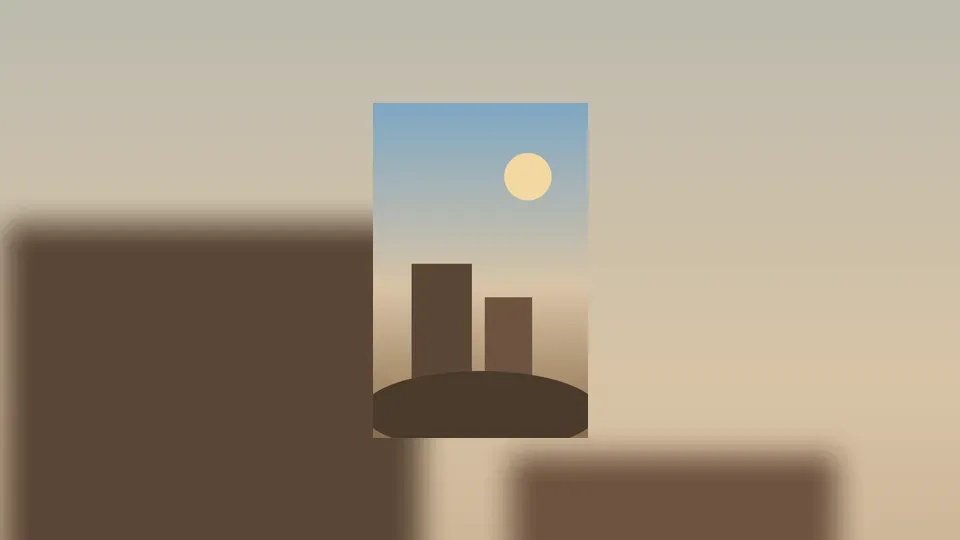
Download the finished image
Export at 1200px, 1080px, 1920px, the original long side, or a custom size up to 4096px as PNG, JPG, or WebP.
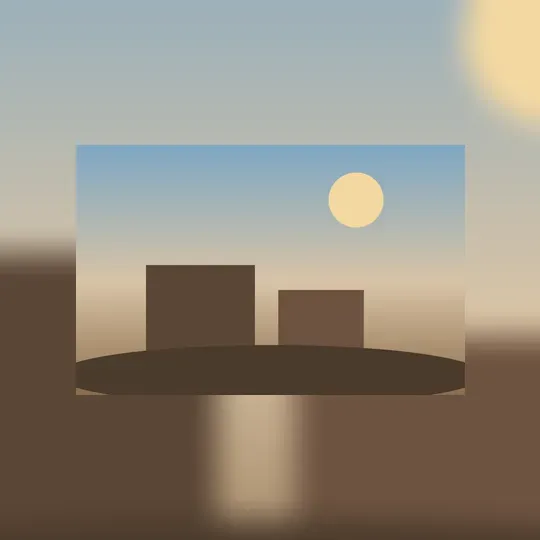
Blurred frame features
Any aspect ratio, not only 1:1
The blurred frame can be 16:9, 9:16, 4:3, 3:4, square, original, or a custom width-to-height ratio. That is the job this page adds beyond the square-only blur on the homepage.
Three live frame controls
Blur sets how soft the edges are. Photo size makes the sharp picture smaller for a thicker frame. Background zoom pushes the blurred copy in so the side blur looks more like color wash than a second copy of the photo.
Keeps the whole photo
The tool contains the original image. Faces, products, and text stay visible. If you want to cut a square out of the picture instead, use the homepage crop mode.
Private browser export
The blurred frame is drawn in your browser. You can process a private photo, download PNG, JPG, or WebP, and close the tab. There is no signup and no watermark.
What is side blur?
Side blur is the same idea as a blurred frame, aimed at the empty left and right (or top and bottom) of a mismatched aspect ratio. TV news, YouTube uploads, and Instagram posts use it when a vertical clip or still has to live on a landscape canvas. Because the fill comes from your own photo, colors match and the edges look intentional instead of padded with black or white bars. This tool builds that side blur photo online: pick 16:9 for landscape, 9:16 for Stories, or Original if you only want a soft border around the current shape.
Why use this blur frame tool
One download instead of a desktop editor
You do not need Photoshop, Canva, or a blur frame generator plugin. Upload, pick a ratio, and download a blur frame photo in the browser.
No black bars and no surprise crop
Platforms often crop or letterbox mismatched photos. A blurred frame lets you choose the canvas first so Instagram, YouTube, or a Story sees the shape you intended.
Colors always come from your image
The fill is a blurred copy of the same photo, so a blur frame PNG or JPG matches the scene instead of dropping in a generic stock border.
Works next to the square tools you already have
Need a strict 1:1 square with no extra frame controls? Use Make Image Square Without Cropping. This page stays focused on side blur and any-ratio frames.
Blurred frame settings and limits
Start Photo size near 80%
A photo size of 75–85% usually shows a clear blurred frame on all sides. Push past 100% only when you want a thin edge.
Raise Background zoom if you see a double image
If the blurred copy looks like a ghost of the sharp photo, increase Background zoom so the side blur becomes broader color, not a second subject.
Match the platform before you export
Use 16:9 for YouTube and presentations, 9:16 for Stories and TikTok covers, and 1:1 for a square post. Custom ratio is for odd print or banner sizes.
This page does not edit video
You can add a blurred frame to a video still or thumbnail. It will not encode a moving side-blur video file.
Best uses for a blurred frame
YouTube thumbnail or 16:9 slide
Drop a vertical still on 16:9, add side blur, and export 1920 or 1280 on the long side so the thumbnail does not show black bars.
Instagram, Reels, and Stories
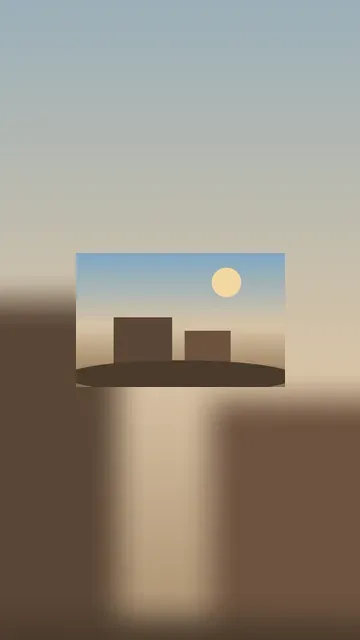
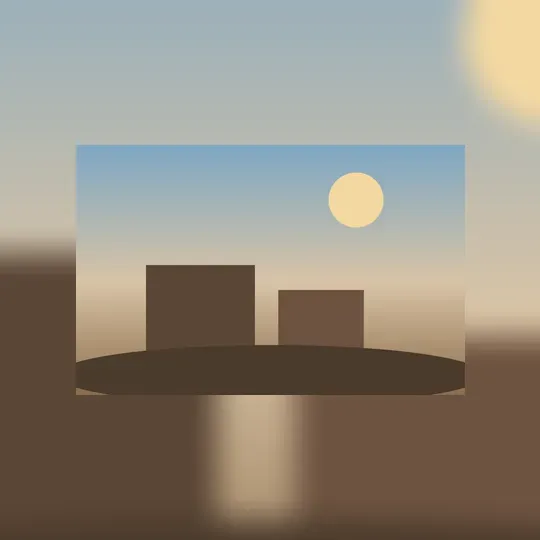
Use 1:1 for a feed post or 9:16 for a Story. The blurred frame keeps a landscape photo visible instead of forcing a tight crop.
Product and brand photos
A soft blur frame gives a product shot a consistent canvas for a shop grid or ad without stretching the item.
Profile or poster frames
Choose Original or 4:5 custom when you only want a blurred border around the current photo, then download a PNG for a clean edge.
Blurred frame FAQ
How do I add a blurred frame to a photo?
Can I add a blur frame online without an app?
Is this blurred frame tool free?
What is side blur, and can I add side blur to a photo here?
How do I add side blur for YouTube?
How do I post a vertical picture without cropping it?
How do I make the blurred frame thicker or thinner?
Does the blurred frame work on iPhone?
Is my photo uploaded to a server?
What sizes and formats can I export?
Can I add a blurred border without making a square?
How is this different from make image square without cropping?
Add a blurred frame now
Upload a photo, pick 16:9, 9:16, or 1:1, and download a clean blurred frame with no watermark.
Open the blurred frame tool