Round avatar and circle crop tool

Circle Crop Image

Crop a photo into a circular avatar and export it as a clean square PNG or WebP.

Drop an image to circle crop

or

Best for profile photos, logos, team headshots, creator avatars, and community icons.

Allowed file types: JPG, PNG, WebP

Circle crop ·Transparent corners ·512px default ·No watermark
Circle Crop an Image for Avatars and Profile Photos

A circle crop image is useful when a profile photo, logo, or avatar needs to look correct inside a round mask. This circle crop image page starts with crop mode, enables the circle preview, and sets rounded corners to 50% so you can export a round-looking avatar with transparent corners in PNG or WebP.

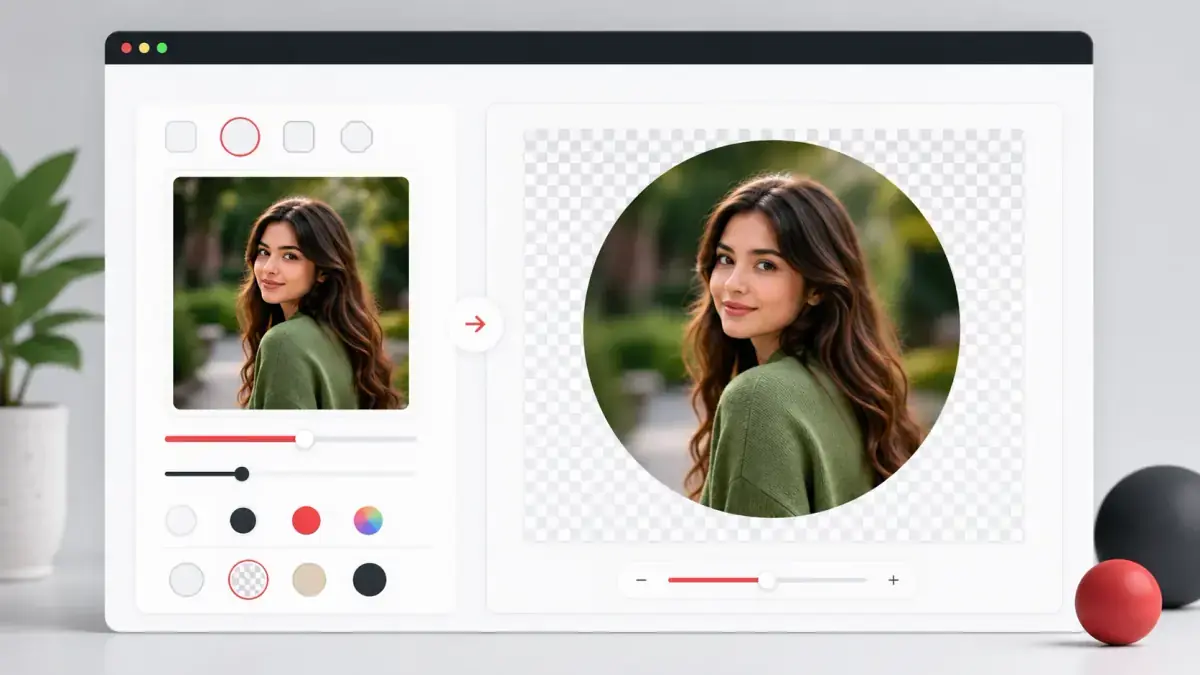
Circle crop image tool preview showing a square photo converted into a round avatar with transparent checkerboard corners
Circle crop preview: crop the subject, check the round avatar shape, and download PNG or WebP for transparent corners.

How to circle crop an image

1

Upload an image

Start with a portrait, logo, product mark, team headshot, or any image you want to turn into a round avatar.

2

Adjust the crop

Use Crop and Zoom to center the face, logo, or subject inside the circular safe area.

3

Keep corners transparent

The page defaults to 50% corners. Export as PNG or WebP if you want transparent outer corners.

4

Download the circle image

Choose 512px, 1024px, custom size, or original size and download the finished avatar image.

Circle crop image features

50% rounded corner export

The default corner radius creates a circle-style file when exported as PNG or WebP.

Transparent corner support

Transparent corners are preserved for PNG and WebP, which is useful for avatars, badges, and profile graphics.

Manual crop control

Drag and zoom the crop area to keep eyes, faces, logos, or important icon details centered.

Circle preview guide

The preview makes it easier to see whether the subject still reads well after a circular mask is applied.

Avatar-ready sizes

Export 512px for everyday avatars, 1024px for higher quality, or a custom square size for app-specific requirements.

Works without account signup

The circle crop workflow runs in the browser and does not require registration or watermarking.

When to use a circle crop image

Social media avatars

Prepare a round-looking source file for Instagram, Facebook, TikTok, X, Threads, and creator profiles.

Work profile photos

Create a clean circular headshot source for Slack, Google accounts, Microsoft profiles, Notion, and internal directories.

Logo avatars

Center a brand mark inside a circle so it stays readable in chat apps, dashboards, and community profiles.

Forum and community icons

Make a circular avatar for Discord, Twitch, gaming communities, forums, and membership sites.

Team and speaker cards

Export consistent circular portraits for website cards, event pages, and author bios.

Transparent PNG badges

Use transparent corners when you need the round image to sit cleanly over different backgrounds.

Circle crop image FAQ

How do I make an image circular?

Upload your image, keep Crop and Zoom selected, leave corners at 50%, then export as PNG or WebP for transparent corners.

Can I download a transparent circle crop PNG?

Yes. Choose PNG or WebP. JPG does not support transparency, so transparent corners will be filled for JPG exports.

Is a circle crop image actually round?

The exported file is still a square canvas, but the visible image can be circular with transparent corners when you use PNG or WebP.

What size should a circle avatar be?

512x512px is a practical default. Use 1024x1024px or 2048x2048px when you need a sharper source image.

Can I use this for logos?

Yes. Use crop mode for tight logo framing or color background mode when the logo needs extra space around it.

Does the circle crop tool add a watermark?

No. The exported image does not include a watermark.