No crop square photo maker

Make Image Square Without Cropping

Keep the whole photo visible by adding a blur or solid color background around it.

Drop a photo to make it square without cropping

or

Best for portraits, selfies, product photos, and vertical images.

Allowed file types: JPG, PNG, WebP

No crop ·Full photo visible ·Private processing
No Crop Square Image Tool

This page is built for photos you do not want to cut. Instead of removing part of the image, the tool centers your original photo and fills the square canvas with a blurred or colored background.

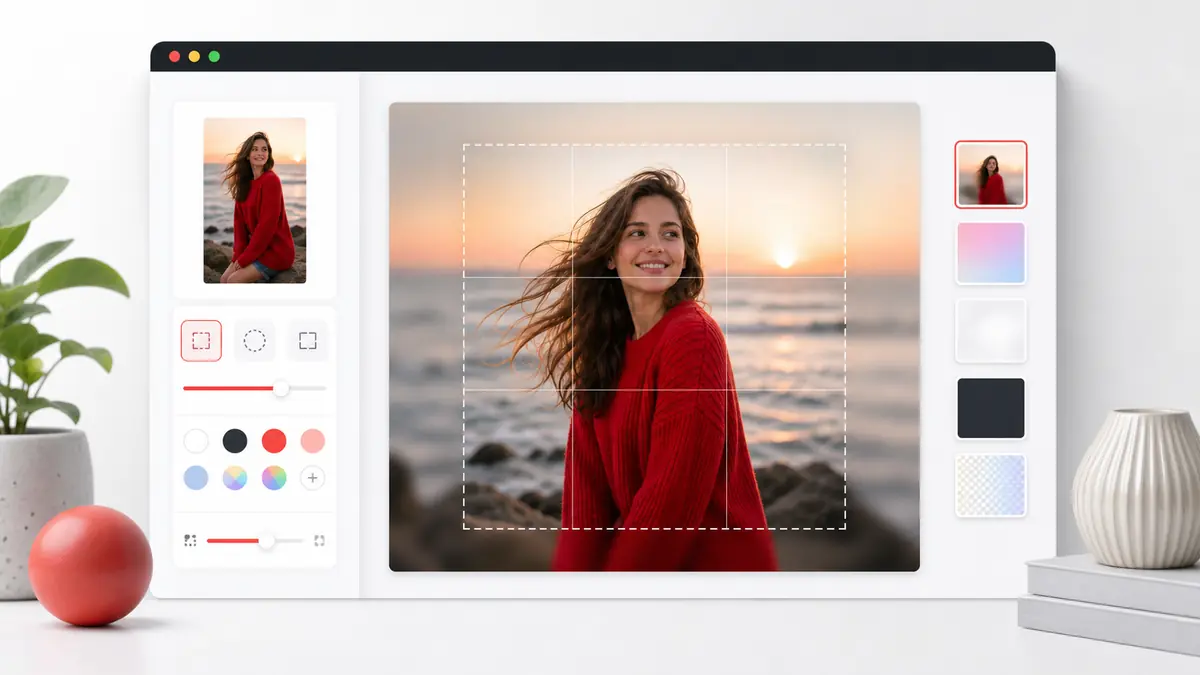
Make image square without cropping by adding blur and color backgrounds around a portrait photo
No-crop square image preview: the full portrait stays visible while blur or color fill creates the 1:1 frame.

How to make a photo square without cropping

1

Upload a portrait or landscape photo

Choose an image that would normally be cropped by a social media app or profile photo uploader.

2

Use Blur Background or Color Background

Blur creates a natural filled frame. Color creates a cleaner border for product shots or simple layouts.

3

Adjust the background

Fine-tune the blur strength or pick a background color that matches the image.

4

Download a square no-crop image

Export the finished square photo as PNG, JPG, or WebP.

Why no-crop square images work

Preserves the full subject

Faces, products, text, and edges stay visible instead of being cut off by a forced square crop.

Better for vertical photos

Portrait images can fit a square canvas while still looking intentional and centered.

Blur or clean color fill

Choose a soft visual background or a flat color depending on whether the image is personal, social, or commercial.

Fast browser rendering

No app install or account is needed. The square image is rendered locally and downloaded from your device.

Designed for full-photo preservation

Make image square without cropping when faces, products, text, logos, or background details need to remain inside the final 1:1 frame.

Good default for social uploads

Many social apps crop quickly and give little control. This page lets you prepare the no-crop square version first.

Predictable output sizes

You can make image square without cropping at 1080px, 1200px, 2048px, or original size before uploading it anywhere else.

Best uses for no-crop square photos

Profile photos

Keep your head, shoulders, and background visible when a platform expects a square image.

Social posts

Share portrait or landscape photos in a square format without losing edges.

Product images

Place a full product photo inside a square frame without cutting off packaging or shadows.

Portraits and selfies

Make image square without cropping when a portrait would otherwise lose the top of the head, shoulders, or background context.

Screenshots and text graphics

A no-crop square frame keeps labels, UI edges, and small text readable instead of trimming them to fit.

Portfolio previews

Use a consistent no-crop square image for gallery cards while preserving the full original composition.

No-crop square image FAQ

What does no crop mean?

No crop means the complete original image stays visible. The tool adds space around it to create a square canvas.

Should I use blur or color background?

Use blur for social photos and portraits. Use a color background for product images, brand content, or clean thumbnails.

Will the photo be stretched?

No, not in Blur Background or Color Background mode. Stretch mode exists, but it can distort the image and is not the recommended no-crop method.

Can I use this for Instagram?

Yes. A no-crop square image is useful when Instagram would otherwise cut off part of your portrait or landscape photo.

Is this private?

Yes. The image is processed in your browser and does not need to be uploaded to a server.

Why should I make image square without cropping first?

Preparing the square version first gives you control over the background, size, and framing before another app applies its own crop.

Can I make image square without cropping a landscape photo?

Yes. Landscape photos fit well with blur or color background mode because the full width stays visible and the empty top and bottom areas are filled.

Can I make image square without cropping a portrait photo?

Yes. Portrait photos are centered inside the square canvas, and the left and right space is filled with blur or a color background.

Does no-crop mode change the original proportions?

No. Blur Background and Color Background preserve the original image proportions while creating a square canvas around the photo.